How To Schedule Send On Outlook Across Desktop, Web, And Mobile


Today’s topic: How to schedule send on Outlook?
Scheduling send on Outlook is one of the easiest methods I have come across when needing to communicate across time zones.
I use this function frequently so that my outbox remains tidy and my messages are sent exactly when my team begins their day.
However, this depends on what Outlook format you are using.
If you are using the traditional desktop software, modern web application, or mobile version, it will look very different.
How To Schedule Send On Outlook Web And New Outlook
The modern web app and New Outlook for Windows are built using a cloud-based system. You will use the specific tool that delivers your message to Microsoft’s cloud servers.
- Cloud Reliability: No need to have your computer running, or connected to the internet when you want to send your message.
- Storage Folder: Your queued messages will be securely stored within your default Drafts folder.
- Account Type: This works with all types of accounts including Microsoft 365 business accounts, Exchange accounts and Personal Outlook.com accounts.
How To Schedule:
Here are the steps that you need to take:
- Open your application and click on New mail.
- Enter your recipient’s information into the To box.
- Scroll down to the bottom of your screen under the Send button.
- Click on the drop-down arrow beside the Send button.
- Click Schedule send.
- Select from the drop-down menu either a pre-set time or select Custom time and enter in a date and time.
- Click Send to queue up your message in your Cloud Folder.
How To Schedule Send On Outlook Classic Desktop
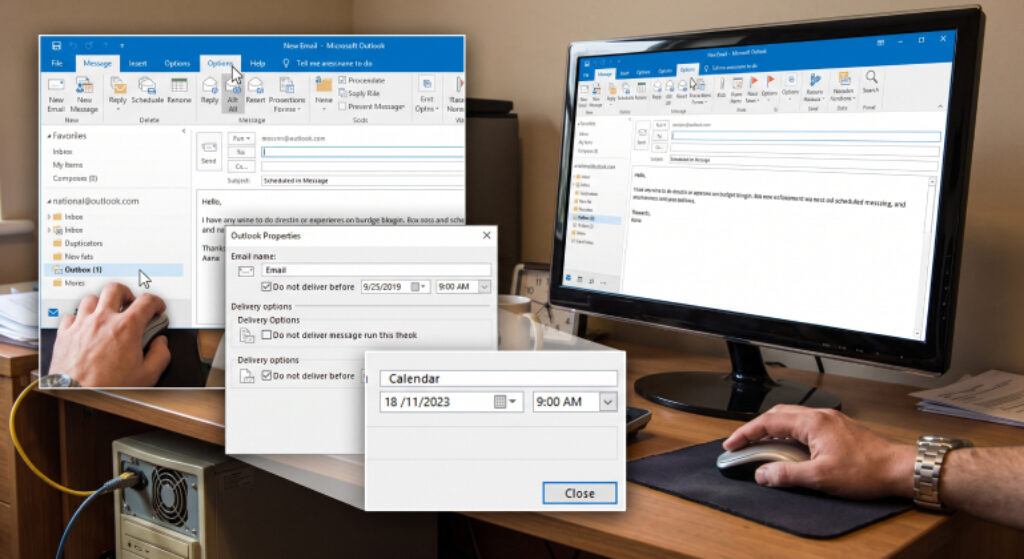
The classic Outlook app for Windows has all the features required to schedule send on the client side. In the desktop version of outlook this is known as Delay Delivery.
- Application Requirements: The desktop application must be open and connected to the internet at the scheduled time.
- Folder Storage: The email will be stored in your outbox folder until it is sent.
- Risks of Power Failure: If your PC is turned off, or your laptop goes to sleep mode or loses connectivity then the email will be stuck in your local outbox until you open the application again.
How To Schedule Send (Classic Desktop)
- Open a new email and click on the new message.
- Type in your content and recipient email address.
- Click on the Options tab.
- Under the More Options group click on Delay Delivery.
- Under the new properties click on the Delivery options section.
- Click on the checkbox next to Do not deliver before.
- Choose a date from the calendar and then choose a time.
- Click Close.
- Click on the Send button.
How To Schedule Send On Outlook Mobile Apps
Once you’re using the Official Outlook App with iOS and Android devices, you’ll have the option to easily organize your outgoing emails. This is due to being hosted within the Cloud.
- Recipient doesn’t require internet connectivity. Real time data or WiFi connection isn’t required to send your email whilst disconnected from the internet.
- Email is saved into Drafts globally. Your message will be stored in your globally viewable draft emails.
- Closing your phone or the app won’t cause any issues as the emails are sent via the cloud.
How To Schedule Email Send Using iOS Or Android.
- Within the app tap ‘Write’ to begin creating a new message.
- Enter recipients and draft your message.
- Click the Horizontal ellipsis symbol on your screen.
- Choose ‘Schedule send’.
- Use the scroll columns to choose the date / time / minute.
- Press save to place your task into your cloud monitored email draft.
Related Article: How To Recall An Email In Outlook (Classic, New Outlook, And Mobile)
Outlook Account Types That Block Scheduled Email
Sometimes the option won’t appear to schedule send your messages in Outlook. This is typically due to the type of email account you are using to log on with.
| Account Protocol Type | Core Infrastructure Style | Scheduled Send Availability Status |
| Microsoft 365 / Exchange | Enterprise Server Architecture | Fully Supported natively across all web and app interfaces. |
| Outlook.com / Hotmail | Consumer Cloud Platform | Fully Supported natively across web, new app, and mobile. |
| IMAP (Gmail, Yahoo, iCloud) | Client-Server Synchronisation | Completely Blocked or missing in web/new app environments. |
| POP3 Accounts | Direct Local Download Protocol | Completely Unsupported for cloud scheduling mechanisms. |
However, if using the standard IMAP / POP3 format on your average desktop app, it will give you the option to see the old delayed send feature. The only catch is the computer you’re working on must always be on.
Handling Shared Mailbox Permissions And Delegations
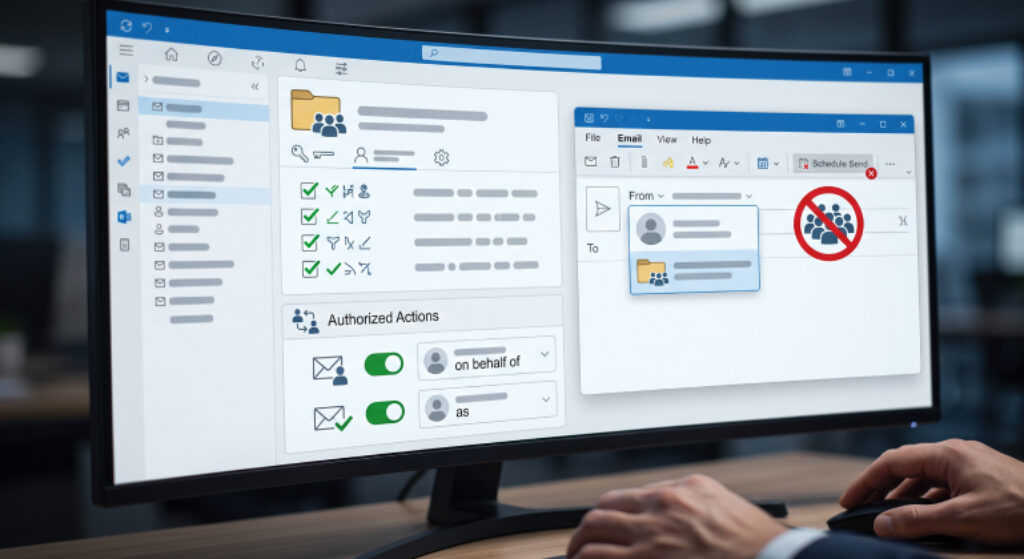
You must be authorized with full access to view information in shared groups. If trying to send emails using these, there must be specific access rules to ensure you are authorized.
- Full Access Required: You must have full access to both Read & Write your data with Admin access.
- Approved ‘Send As‘: Your profile must have been authorized to send on behalf of, with access to ‘Send As’ or ‘Send on Behalf’.
- Blocked for Distribution Lists: When using shared mailbox access, you will be blocked completely from scheduling emails sent to broad distribution lists.
Once you have access to shared mailbox email, open the shared mailbox and write the draft. Then simply follow the drop-down menu.
Resolving Automated Send Delay Rule Conflicts
Many enterprises will have set up an auto rule which waits for a set time between one and two minutes before sending all mass emails.
So if you try to schedule your email using the bespoke option while this rule is in operation, you may encounter issues.
- Auto Rule Conflict: When trying to send a message with a future-dated message, the local software becomes confused.
- Message Issues: The email can become stuck permanently in your outbox or will remove all your bespoke time.
- Fix: You can create a bespoke rule to make the system ignore the one-minute delay when the email has certain flags.
Create Rule Exception:
- Go to File Tab > Manage Rules & Alerts.
- Select your Global delay rule.
- Click on Change Rule Options> Edit Rule Settings.
- Click Next. Continue to navigate through the sections.
- On the final screen, click ‘Exceptions’.
- Tick the box saying except if it contains importance or except if it contains certain words in properties.
- Click Save so your manual send emails can be ignored.
Viewing, Modifying, And Canceling Scheduled Emails
If you need to make adjustments to your text, change the send time, or delete it completely, then you can manually adjust your queue. This all depends on where the file has been stored.
- Web / New Outlook: Go to the Drafts folder > Select Message > Click Cancel Send > Write your changes
- Desktop: Go to Local Outbox > Double-click the file > Click Delay Delivery.
- Mobile App: Go to Drafts Folder > Select Item > Click Cancel Send.
I hope this blog has been helpful to you if you wanted to know how to schedule a send in Outlook. If there are any other questions related to this, please feel free to drop them in the comments below!
Additional Resource: How To Keep Teams Status Green? Here Are 6 Ways To Always Be Active On Teams