
How To Delay Sending An Email In Outlook: A Complete Step-By-Step Guide

Knowing how to delay sending an email in Outlook is a brilliant way to prevent typos, missing attachments, and sending by mistake.
This feature is very important for me, as I use it a lot, and one great thing about delaying emails is that it gives you some valuable time to think.
If you want to learn how to delay sending an email in Outlook, keep reading!
How To Delay Sending An Email In Outlook (Classic)
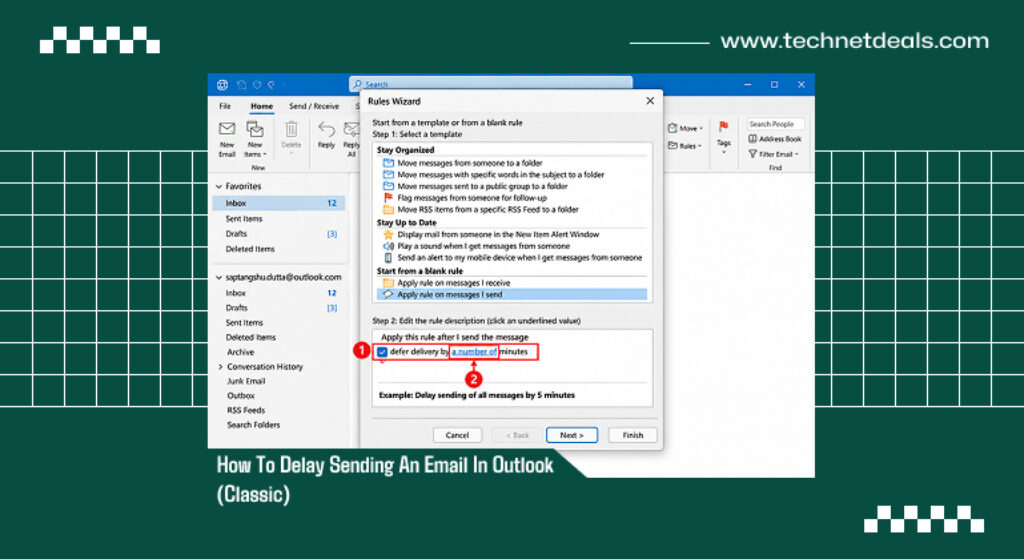
In Outlook Classic, we can create an automated rule to delay any message from being sent from your email system. Whenever you send a message, it will go into your outbox.
Your message will now go into the local delaying queue. This causes the following effects:
- The message is delayed whilst held airborne in your system.
- By using this rule, you can choose how long messages get delayed for. The time can be as little as 1 minute up to 120 minutes.
- It is delayed due to the rule only being run locally. So while the message is waiting, it needs to be open and using internet access.
How To Delay Emails Sent From Outlook
- Open the classic app and click on the File tab located in the top-left menu corner.
- Select the Info category option and click the Manage Rules & Alerts button.
- Click the New Rule icon inside the E-mail Rules window tab to open the setup wizard.
- Navigate down to the section header labeled Start from a blank rule.
- Select the option text labeled Apply rule on messages I send and click Next.
- Leave all the initial condition checkboxes empty if you want this rule to apply to every single outgoing email, then click Next and confirm the popup warning.
- Look inside the actions list box and check the box for defer delivery by a number of minutes.
- Click the underlined phrase value a number of located within the bottom preview box pane.
- Type your desired delay length integer value into the dialogue field box and click OK.
- Click Next, add any specific contact exceptions if desired, name your new rule profile, and click Finish.
How To Delay Sending An Email In Outlook (Web/New Outlook)
The updated Outlook email platform and New Outlook run in a similar fashion to delay emails sent. This function is labeled ‘Undo Send’ by Microsoft. It temporarily stops messages from being sent by the user.
Messages awaiting sending will be in temporary cloud storage. With advanced Outlook, you cannot choose how long messages are delayed – it’s set to 5 or 10 seconds.
There will be an on-screen “Undo Send” bubble shown. This can be clicked to stop emails.
Steps To Create Undo Send
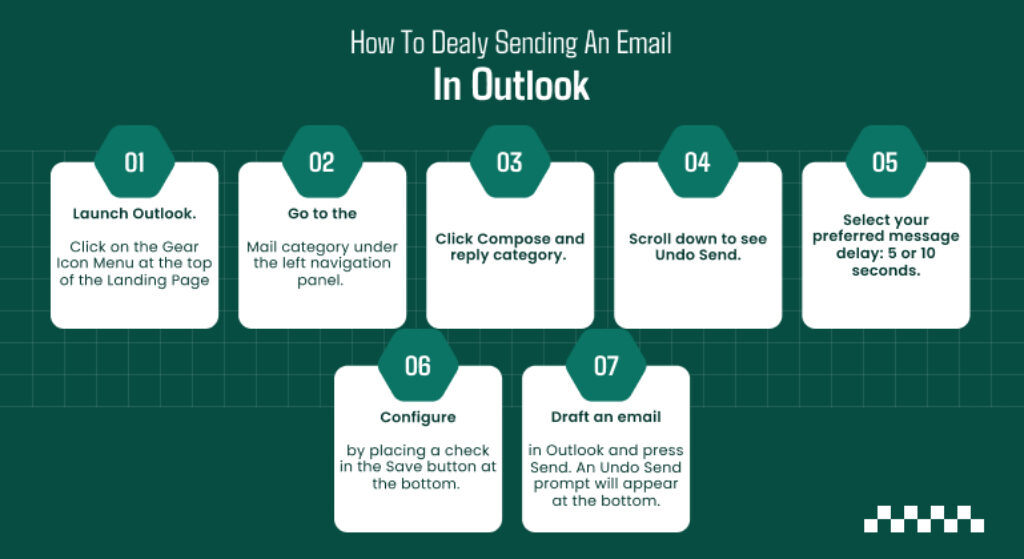
- Launch Outlook. Click on the Gear Icon Menu at the top of the Landing Page.
- Go to the Mail category under the left navigation panel.
- Click Compose and reply category.
- Scroll down to see Undo Send.
- Change the Severity Selection Indicator to choose how you would like to handle your rule for personal message sending – Change Timing behavior for messages (Either 5 or 10 seconds).
- Configure by placing a check in the Save button at the bottom.
- Start typing a draft in Outlook. Then press Send. Your message will immediately get an “Undo Send” bubble shown at the bottom of the screen.
Related Article For You: How To Recall An Email In Outlook (Classic, New Outlook, And Mobile)
What Happens When Using Multiple Rules?
If applying multiple rules to messages, there is an overall rule that will extract emails. This keeps your emails all in order. These basic rules are:
- If you have applied a specific date/time to individual messages, then this will override your rules, ensuring it sends on its date/time.
- If you do not have a specific individual time applied then your oulier delay rule in minutes will be applied.
Depending on the system you are on, sometimes adding a manual delay can overlap with your global rule. This can cause your messages to need extra time added.
Overall Sequence Process
- User presses send.
- System will check for Delayed Sending rule inside properties.
- If there is manual delay – Message will be sent to queue.
- If there is not manual delay – Rule will be applied. Starts counting in minutes.
Storage Paths And Local Outbox File Management
Depending on what method you choose to delay your communications, the email will be opened and the folder will be changed. Knowing this will help you locate and edit communications.
| Delay Method Type | Active Storage Folder Location | Physical Data Hosting Environment |
| Global Deferral Rule (Classic) | Outbox Folder Location | Local Machine Storage / Local OST Data File |
| Individual Delay Properties | Outbox Folder Location | Local Machine Storage till application sync |
| Undo Send Delay (Web/New App) | Temporary Cloud Buffer | Microsoft Exchange Cloud Server Memory |
| Scheduled Send Cloud Path | Drafts Folder Location | Cross-Platform Cloud Mailbox Storage Sync |
If you need to change the template of any of your emails based in the local folders, you can open the relevant folder.
Double-click on the email to bring up the drafting page. File will automatically pause the countdown timer.
Steps To Turn Off Auto Send Rules
- Go to the Top Bar Tab. Press File.
- Select the Options button from the bottom nav.
- Click the Advanced Options category.
- Scroll down on the right side. Find the Send and receive Heading.
- Tick the box next to the “Send Immediately When Connected’ rule.
- Click OK to end the process and quận outlook.
Common Issues With Local Delay Rules
When local emails are not sending and get stuck in the folder queue, then it will usually be a problem with your account synchronization settings.
The main issue here would be that Cached Exchange Mode has been turned off, so your local client engine can’t sync your rules timers properly with the actual server clock.
The application also depends on the “Send immediately when connected” box being ticked. If this isn’t ticked, then you won’t be able to keep clearing the background queues.
Lastly, 3rd party add-ins such as security software, anti-virus shields, and tracking can cause the emails to get locked because they interfere with the underlying file structure, and your rules engine will skip over them.
Additional Resource: How To Keep Teams Status Green? Here Are 6 Ways To Always Be Active On Team