The Complete Guide To Using Microsoft Teams (Shortcuts, Integrations, And Features Most People Miss)

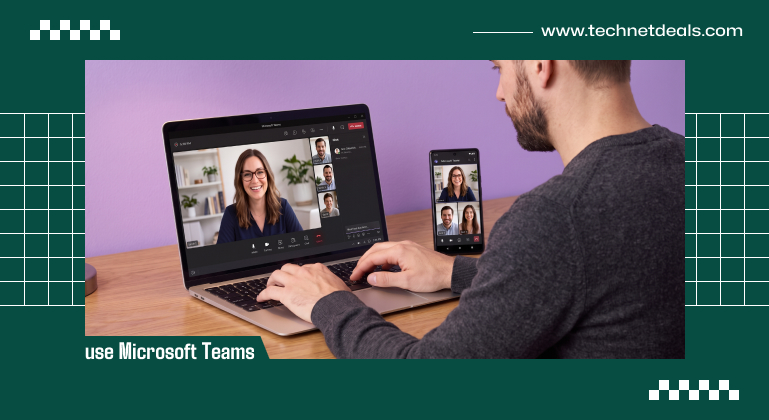
Today’s topic: How to use Microsoft Teams like a pro.
I’ve spent nearly 10 years in the marketing industry, working across remote and hybrid teams that live in Teams for most of the workday.
Hence, I have a rather clear picture of how to use Microsoft Teams as if you live in it. And I want to show you how I actually use it – the parts that make the difference between tolerating Teams and genuinely working faster inside it.
So, if that’s what you want to read, scroll down!
How To Use Microsoft Teams?

Just being able to set up a chat or create a meeting isn’t enough to leverage Microsoft Teams to its full potential.
Sign in on desktop, web, or mobile, learn your way around the sidebar (Activity, Chat, Teams, Calendar, Calls, Files), and then add keyboard shortcuts, slash commands, and apps that work with Trello, Planner, and Polly.
That’s the truth that really does help us to communicate faster, not just functionally.
Getting Set Up Across Your Devices
Teams works the same core way whether you’re on a desktop app, the web version at teams.microsoft.com, or the mobile app on iOS and Android, but the experience isn’t identical across them.
The desktop app is where I’d recommend doing anything that requires focus. For me, that would include:
- deep chat threads,
- file collaboration,
- channel management.
It supports the full shortcut set and every integration. The web version is a close second and useful if you’re on a shared or locked-down machine.
Mobile is genuinely great for staying responsive between meetings or when you’re away from your desk. But a few things – like adding people to a group chat simultaneously, or managing more advanced settings – are desktop- or web-only.
One habit I’d build early: if you’re signed into both a personal Teams account and a work or school one, you can switch between them from your profile picture instead of logging in and out repeatedly.
It sounds minor. But it saves a surprising number of interruptions over a week.
Understanding The Core Workspace
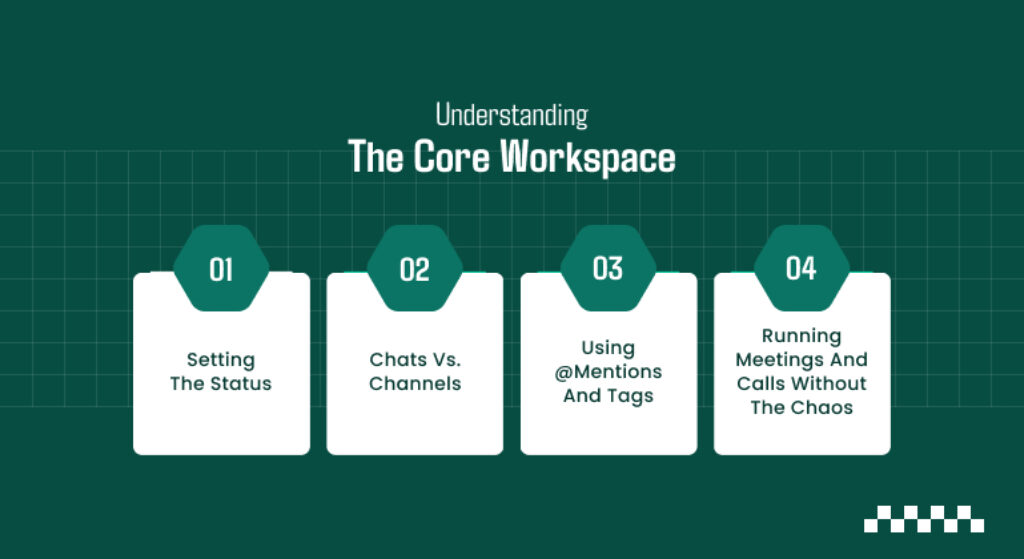
Once you’re in, the left sidebar is your home base. It typically includes:
- Activity,
- Chat,
- Teams,
- Calendar,
- Calls,
- Files.
And learning to move between these quickly – rather than clicking around – is the first real productivity gain.
Setting The Status
Your status lets everyone know if you’re deep in focus or free to chat. To control your availability manually and learn how to keep Teams status green during long work sessions, click your profile picture in the top right to select your current state and set custom status messages.
Chats Vs. Channels
This distinction trips people up constantly, so I want to be direct about it. A chat is a one-on-one or small group conversation, closer to a private message.
A channel lives inside a “Team” and is meant for an ongoing, searchable conversation tied to a project or department – anyone added to that Team can see the channel’s history.
My rule of thumb: if the conversation should be discoverable later by someone who wasn’t part of it originally, it belongs in a channel, not a chat.
This alone cuts down on the “can someone re-share that file” messages that clutter most teams’ communication.
Using @Mentions And Tags
Tag them with an @. This sends them a notification, which is useful in a busy channel that is overflowing with messages.
Less common, but a nice-to-have: custom tags (via “Manage Tags” on a Team) allow you to @mention a group all at once, e.g., everyone on a particular project or shift without bothering the entire channel.
Running Meetings And Calls Without The Chaos
You have two options for beginning your meeting: you can either plan your meeting in advance on the Calendar tab, or you can jump right into a “Meet now” meeting.
For repeated standups or planning meetings, I always add them to the calendar this way; people have something to see on their calendar and an agenda to review, which impromptu meetings don’t provide.
When it’s time to log on, you can join a Teams meeting in one click directly from your calendar invite or a shared chat link. This basically helps you jump right into the discussion, skipping the usual login scramble so you can focus on the agenda.
Once you’re in a meeting, a few things make calls meaningfully smoother:
- Background blur or a virtual background, especially useful if you’re calling from somewhere less than camera-ready
- Raise hand, which keeps larger meetings from turning into cross-talk
- Switching devices mid-call – you can move a meeting from your laptop to your phone without dropping it, which has saved me more than once when I needed to step away but stay on the call
For the times when you’re on a lot of external or client calls, know that you can record your meetings (with permission), and Teams will automatically generate a transcript and chat recap so you can ensure you don’t leave anything important behind when someone misses the call.
The Features Most People Never Discover
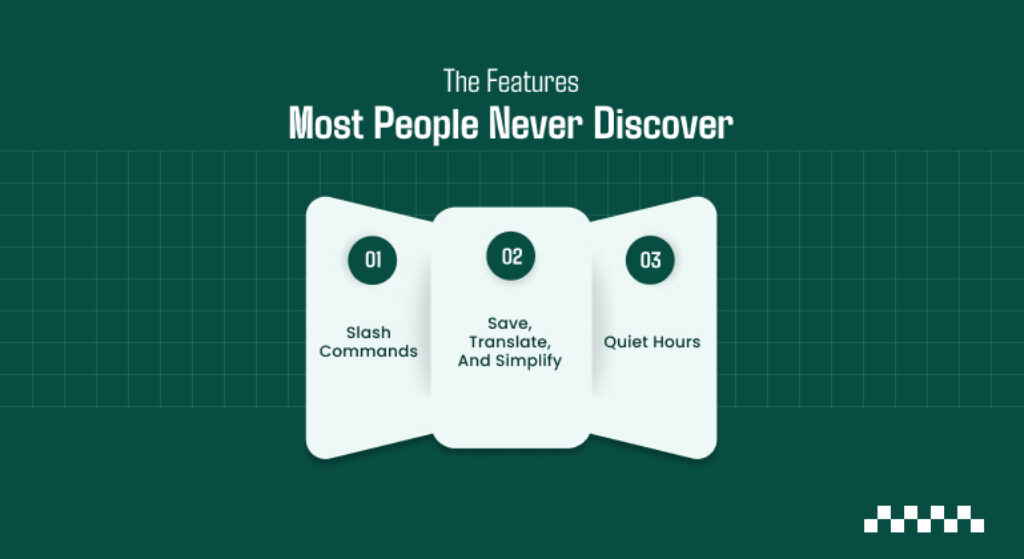
When learning how to use Microsoft Teams, this is the part I think gets genuinely underused. And it’s where the real time savings live.
Slash Commands
Typing a forward slash in the search or compose box brings up a list of quick commands. The ones I actually use:
- /away, /busy, /dnd: set your status instantly instead of clicking through menus
- /goto: jump straight to a specific channel or team
- /files: pulls up your recently shared files
- /saved: takes you to messages you’ve bookmarked for later
Save, Translate, And Simplify
Right-click a message, and you get some choices that very few bother looking at:
One feature is Inline translation. It is actually useful when working with cross-regional teams. Then there’s “Save this message,” which is akin to bookmarking, so you can avoid wading through a week’s worth of chat to find the bit you want.
Another one to keep in your toolkit: Immersive Reader. It’s great for reducing a long text to clean, adjustable text (very handy for long or dense messages, as well as being a genuine accessibility tool for those who need to use text-to-speech or adjustable spacing).
Quiet Hours
If notifications outside work hours are a problem for you, Teams lets you set quiet hours so you’re not pinged after a set time. I’d consider this a non-negotiable setting for anyone working across time zones.
Integrating The Apps You Already Use
Teams becomes considerably more useful once you stop treating it as an island. A few integrations I’d actually recommend, depending on what your team already runs on:
- Trello or Asana – add your boards or projects as a tab directly inside a channel, so task updates show up without switching apps
- Microsoft Planner – the native option if you don’t want to introduce a third-party tool
- Polly – quick polls and surveys posted directly into a channel, useful for fast team feedback without a separate form
- SharePoint or OneDrive files – pin a document as a tab so it’s always one click away instead of buried in a Files thread
Adding any of these is the same basic process: click the + next to your channel’s tabs, search for the app, and connect your account. It takes a couple of minutes and removes a lot of app-switching from your day.
Keyboard Shortcuts Worth Memorizing

You don’t need all of them – just enough to stop reaching for your mouse for routine actions. On Windows, the essentials are:
- Ctrl+E (search),
- Ctrl+N (new chat),
- Ctrl+Shift+M (mute),
- Ctrl+Shift+O (camera on/off),
- Ctrl+Shift+E (share screen),
- Ctrl+1 through Ctrl+6 to jump between Activity, Chat, Teams, Calendar, Calls, and Files.
On Mac, swap Ctrl for Command. Press Ctrl+Period (or Command+Period on Mac) any time to pull up the full shortcut list inside the app itself.
How I’d Actually Use This Day-to-Day
If I were setting someone up from scratch, here’s the order I’d focus on:
- get comfortable with chats vs. channels first,
- learn four or five keyboard shortcuts you’ll use daily,
- set quiet hours before anything else,
- then add one integration that matches a tool you’re already using.
Any other features beyond that – slash commands, tags, Immersive Reader – are best learned gradually rather than all at once.
It pays to get started with Teams. Once you are a little more familiar with it, Teams ceases to be an app you have to open and use and becomes exactly what communication should be: instant, searchable, and it runs only in the background until you need it.
Additional Resource: Antivirus Reedoor2.4.6.8: Enhancing Digital Security While Optimizing Tasks