How To Stop The Content://Cz.Mobilesoft.Appblock.Fileprovider Blank Page Glitch On Android?

If you are like most Android users, you probably freaked out a little bit when you first saw content://cz.mobilesoft.appblock.fileprovider/cache/blank.html pop up in your mobile browser’s address bar, history logs, or system crash reports.
It looks intimidating, highly technical, and looks exactly like the kind of cryptic string a piece of spyware or malware would leave behind.
I want to reassure you right away: this address is completely safe, non-malicious, and is a built-in feature of a legitimate application.
So, what is it exactly?
What Is content://cz.mobilesoft.appblock.fileprovider/cache/blank.html?
Specifically, the content://cz.mobilesoft.appblock.fileprovider/cache/blank.html URL belongs to AppBlock, a popular digital well-being and productivity tool developed by a company called CZ MobileSoft. Millions of people use this app to block distracting websites and social media platforms to reclaim their focus.
Instead of routing your internet requests through a distant, clunky external server to block a webpage, AppBlock works locally right on your device. The string you are looking at is an Android Content URI (Uniform Resource Identifier).
According to Command Linux, it acts as a secure, internal pointer directing your phone’s browser to a locally cached, entirely blank HTML file instead of the distracting site you attempted to visit.
To really understand why it looks so complex, let’s unpack the anatomy of this URI:
- content:// – This tells your operating system that the resource is managed by a secure Android ContentResolver system. It is not a live web address like https://.
- cz.mobilesoft.appblock.fileprovider – This is the explicit “Authority” string. It serves as a secure gatekeeper assigned to AppBlock, allowing it to communicate securely with other apps without exposing your underlying root system directories.
- /cache/blank.html – This points to the actual temporary subdirectory where a clean, empty placeholder template file (blank.html) is loaded.
When Do You See content://cz.mobilesoft.appblock.fileprovider/cache/blank.html?
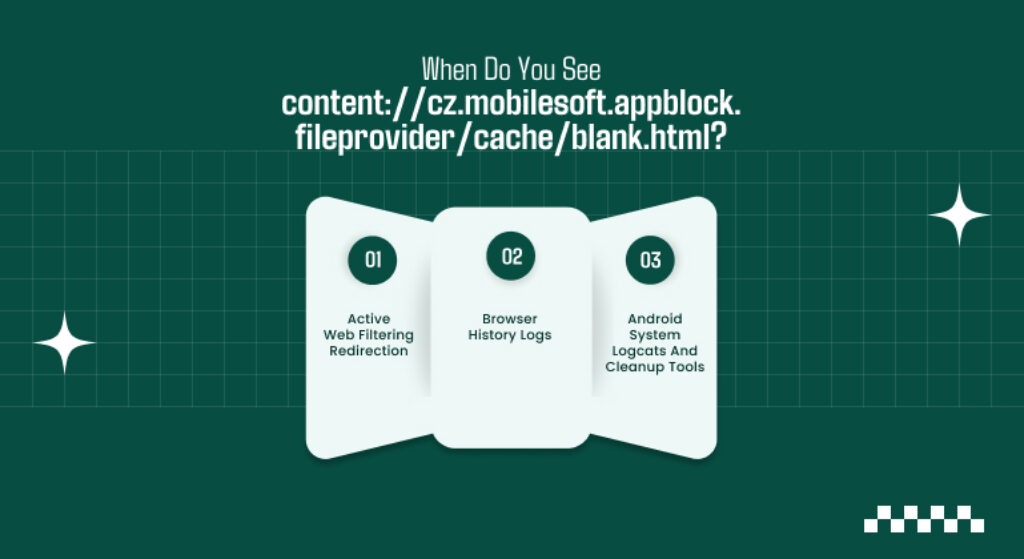
I have found that this string typically forces its way into your view under a few very specific operational scenarios:
Active Web Filtering Redirection:
If you try to navigate to a blacklisted domain (like Instagram or X) while an AppBlock profile is actively running, the app intercepts your request.
Instead of throwing a generic “No Internet Connection” network error, it instantly swaps the destination for this local blank.html file. Your browser then displays this string in the address bar.
Browser History Logs:
Because your mobile browser views this swap as a successful local redirection, it registers the event as a completed navigation entry.
As a result, when you go back to check your history later, you will find it littered with these technical strings.
Android System Logcats And Cleanup Tools:
If you use device cleaners, storage optimization software, or run Android debugging tools (Logcat), you will frequently see this file provider resource pop up.
The system flags the file because a frequently modified temporary file sits in your system’s application cache.
You Can Also Check: What Is A DHCP Configuration? Everything You Must Know In 2026
How To Fix The Blank.Html Redirection Glitch
While the developers intentionally designed the content://cz.mobilesoft.appblock.fileprovider/cache/blank.html page, Android sometimes confuses the system.
A common issue is a “caching loop”, where your browser permanently loads a blank page even after you turn off your productivity timers or whitelist a website
If you are currently stuck in this loop, work through the following steps to clear the error out completely:
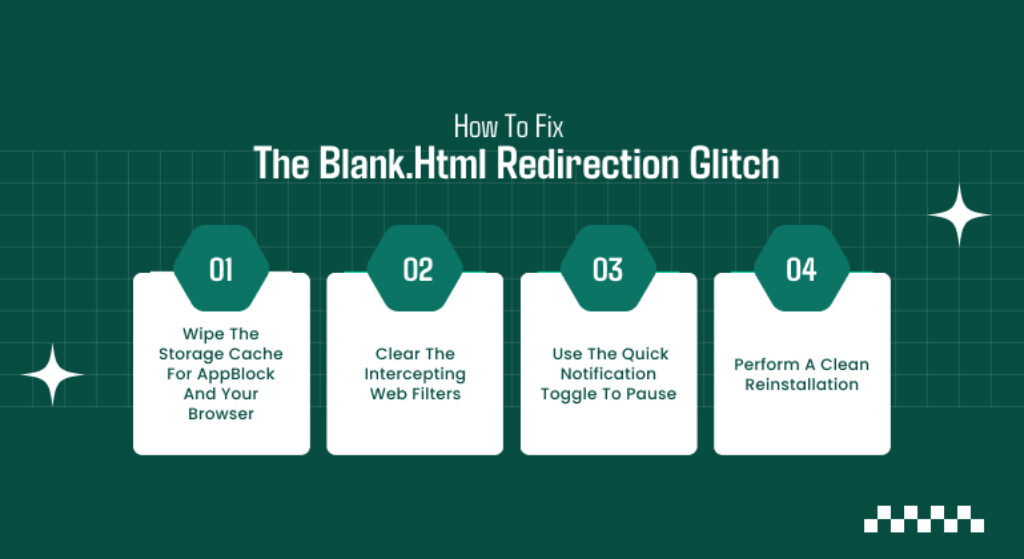
Step 1: Wipe The Storage Cache For AppBlock And Your Browser
Most of the time, the error persists because Android’s web engine is aggressively clinging to old temporary files.
- Open your Android device’s Settings app.
- Navigate to Apps (or Apps & Notifications) and select See All Apps.
- Scroll down and tap on AppBlock.
- Select Storage & Cache, then tap Clear Cache.
- Go back to your app list, select your primary browser (e.g., Google Chrome), and perform the exact same Clear Cache action.
Step 2: Clear The Intercepting Web Filters
If a website you genuinely need to use keeps getting blocked, the underlying rules within your productivity profiles cause the restriction:
- Launch the AppBlock application.
- Tap on the Settings gear icon or open your active blocking profile.
- Look for the Web Filtering tab.
- Review your blocked domain lists and explicitly delete or whitelist the URL that is throwing the blank.html string.
Step 3: Use The Quick Notification Toggle To Pause
If you don’t want to mess with your permanent schedules but need immediate access to the web, you can temporarily halt the background filtering service.
- Pull down your device’s notification shade from the top of the screen.
- Locate the ongoing AppBlock status notification.
- Tap Pause. This immediately stops the local file provider from intercepting your web traffic, restoring normal browsing.
Step 4: Perform A Clean Reinstallation
If the URI continues to break your browser even when you completely turn off the app, a system update may have corrupted the internal FileProvider XML configuration mappings within the application.
To resolve this underlying configuration issue, you can try these options:
- Go to your device Settings > Apps > AppBlock.
- Tap Uninstall to entirely purge the cz.mobilesoft footprint from your device architecture.
- Restart your phone to flush out the system’s volatile memory cache.
- Reinstall a fresh copy of the app directly from the Google Play Store.
Also Check: What Is Google Nest Hub Max? And What Are Its Uses In A Household?
What Else You Should Know: Under The Hood Of Android Security
To fully put your mind at ease, I want to explain why this mechanic is actually protecting your security, rather than compromising it.
Older versions of Android allowed applications to share direct file paths (like file://sdcard/download/image.png) with other apps. This was a massive security vulnerability. If a rogue app gained access to that path, it could potentially traverse your folders and steal your data.
To fix this, modern versions of Android utilize FileProvider architecture. When AppBlock needs to show your browser a blank screen, it uses this system to create a secure, isolated sandbox.
The browser only sees the virtualized pointer content://cz.mobilesoft.appblock.fileprovider/…. It has absolutely zero visibility into the rest of your phone’s storage or your private app files.
So, when you see this string, you aren’t looking at a breach. You are actually watching Android’s advanced, modern permission sandbox protect your privacy exactly the way developers designed it to work.
Additional Resource: Antivirus Reedoor2.4.6.8: Enhancing Digital Security While Optimizing Tasks