
How To Join A Teams Meeting? Every Method, From Any Device Explained


| Quick Answer How can I join a Teams meeting? There are a few easy options for you to join a Teams meeting. First, click the link in your invite. Second, locate the meeting in your Teams calendar. Third, enter a Meeting ID and passcode. Finally, if you have no internet, you can dial in by phone. None of these options requires a Teams account. |
I’ve joined more Teams meetings than I can count at this point, from client calls to internal standups, and the honest truth is most people only know one way in – the link in their email.
That’s fine until the link doesn’t work, you’re on a device without the app, or you’re dialing in from a train with no signal for video.
So here’s every way I actually use to get into a meeting, plus what to do once you’re there.
How To Join A Teams Meeting: Step-By-Step Guide
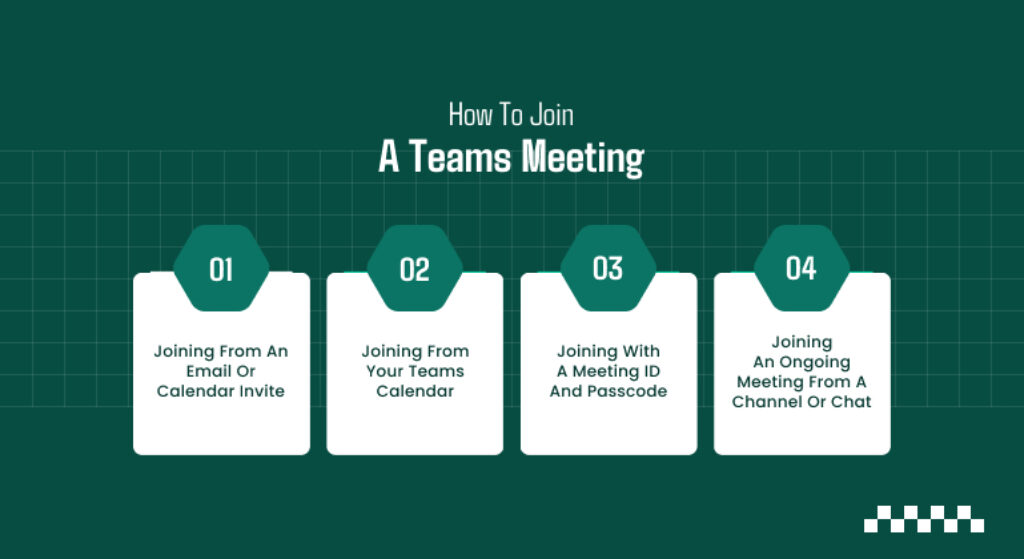
Planning to join a Teams meeting for the first time? Don’t know how exactly to do so? Check out these steps:
Joining From An Email Or Calendar Invite
This is the most popular and really the fastest way. Just go to the invite and select the option to join the Microsoft Teams meeting. You will be directed to a page that asks whether to use the browser or launch the app.
If you already have the app, it’ll normally open for you automatically. Once you’re in, check your mic and camera on the pre-join screen and then hit Join now.
Joining From Your Teams Calendar
Already scheduled to your Teams calendar?
If you accepted the invite, the meeting will be added to your calendar automatically. After that, just head to the Calendar tab on the left sidebar, locate the meeting, and hit Join.
I usually choose this option when I am already working within Teams since this eliminates email threads altogether.
Joining With A Meeting ID And Passcode
Not every meeting arrives as a calendar event. If someone sends you just a Meeting ID and passcode – common for one-off or externally organized meetings – open Teams, go to Calendar, and select Join with an ID.
Type in both, and you’re in. This also works from a browser on the Microsoft Teams “Meeting by ID” page if you don’t have the app at all.
Joining An Ongoing Meeting From A Channel Or Chat
If a meeting is already happening inside a Team channel, you’ll see a Join button directly in that channel, with a note that it’s live.
The same applies to chats – if someone starts an impromptu call in a one-on-one or group chat, a join prompt appears right there without you needing to go hunting for a separate invite.
Joining From Different Devices
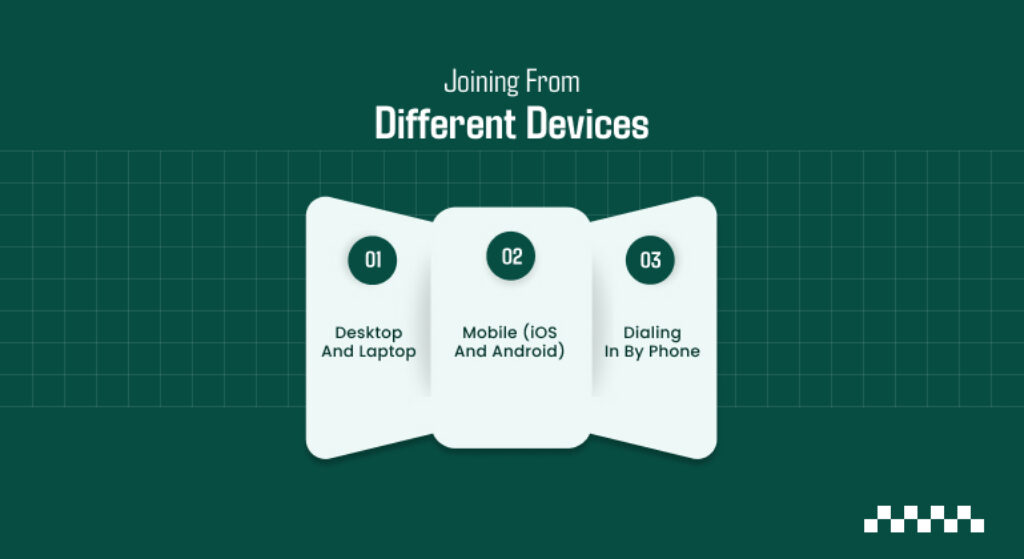
Here are a few ways to join a Teams meeting from different devices:
Desktop And Laptop
On a computer, you’ve got two real options: the installed app or your browser. The app gives you the full feature set.
But joining through Chrome or Edge works nearly as well for most meetings and is handy on a machine where you can’t install software – a shared office computer, for instance.
If you’re new to the platform in general, it’s worth spending a few minutes on how to use Microsoft Teams beyond just meetings, since the same navigation habits carry over.
Mobile (iOS And Android)
On your phone, tapping the join link in an invite opens the Teams app directly. If the meeting’s on your calendar within the app, go to the Meet tab and tap Join.
One detail I didn’t know for a long time: you can also join with a Meeting ID from the mobile app the same way you would on desktop.
And on iPhone, Siri can start the process for you – something like “Call next meeting using Teams” will pull it up.
Dialing In By Phone
No internet access? Then, join by phone. If the meeting invite lists a dial-in number and conference ID, you can call in.
Sure, this won’t let you share screens or video. But it’s a solid backup when you just don’t have the bandwidth for a whole video call. So be sure to double-check any invites you get before making a move to reschedule.
Can You Join A Teams Meeting Without Teams?

Yes – and this is the part people are often surprised by. You don’t need a Teams account, and you don’t need the app installed, to attend a meeting.
Click the join link and pick Continue on this browser rather than downloading the app. Select Join as a guest, type your name, and you are in.
It works on Chrome or Edge. You may be asked to allow mic and camera access, which you can adjust once you’re in the meeting.
Depending on how the organizer set things up, you might also be asked to enter a one-time passcode sent to your email instead of creating an account.
Either way, you don’t need to download anything or sign up to attend.
Once You’re In: Screen Sharing, Recording, And Meeting Controls
Best feature? Mine has got to be screen sharing. Just press the shortcut once to get the share picker, share your screen or a specific window, and press once more to stop sharing.
To include computer sound while sharing a video clip, make sure to turn on the “Include system audio” switch before you start sharing.
Recording works a little differently. According to Microsoft Support, it is limited to the meeting’s presenters and organizer.
Everyone in the meeting gets notified the moment recording begins – there is no silent version of this – and the finished file saves directly to cloud storage once you stop it.
| Action Type | Desired Function | Navigation Pathway |
| Keyboard Shortcut | Start / Stop Screen Share | Ctrl + Shift + E (Windows) | Cmd + Shift + E (Mac) |
| Keyboard Shortcut | Toggle Microphone Mute | Ctrl + Shift + M (Windows) | Cmd + Shift + M (Mac) |
| Keyboard Shortcut | Toggle Video Camera | Ctrl + Shift + O (Windows) | Cmd + Shift + O (Mac) |
| Keyboard Shortcut | View All App Shortcuts | Ctrl + Period (.) |
| Menu Navigation | Start Recording & Transcribing | More actions … → Record and transcribe → Start recording |
| Cloud Storage Destination | Automatic File Saving | Saved instantly to Microsoft OneDrive or Microsoft SharePoint |
Lesser-Known Ways To Join A Teams Meeting
You can bypass the typical application scramble by executing your workflow directly from your native calendar tool.
- Outlook Direct Join: This one lets you skip launching Teams entirely by using the native Outlook Calendar add-in, so you can hop straight into live calls from event notifications.
- Google Calendar Add-On: Keep your hybrid tech stack flowing with the Google Calendar Add-On and its specialized integration link.
- Presence Management: You can adopt the habit of managing your availability on purpose. Understanding how to keep Teams status green tells colleagues you are online and reachable right before a meeting kicks off.
| Entry Channel | System Interface | In-Call Features & Capabilities |
| Desktop App (Signed In) | Full App UI | Complete access to camera, mute, screen sharing, and the raise-hand system. |
| Web Browser (Guest View) | Lightweight Web UI | Exact same interface controls; arrival path changes, but functionalities match completely. |
This seamless capability matrix is a deliberate infrastructure design by Microsoft. Choose whichever entry channel offers the fastest access for your current active device.
My Actual Routine To Join A Teams Meeting
Realistically, I default to the calendar join whenever I am already in Teams. I fall back to the email link when I am not. Finally, I keep the Meeting ID method ready for anything sent outside a normal invite.
Knowing the phone dial-in and browser options gives me peace of mind. A bad connection or a locked-down device has never stopped me from joining. At the end of the day, getting into the meeting reliably is all that matters.
Also Check: How To Use And Interpret The Tracert Command In Windows?