How To Use SFM Compile To Export Assets And Animations [Tutorial For Beginners]

Are you entering the world of 3D animation, game design, or digital storytelling? If so, you have likely seen the phrase SFM compile. When I first started using Source Filmmaker (SFM), this term completely confused me.
For clarity, SFM is the official movie-making tool developed by Valve. Sadly, the internet is full of fragmented forum posts. As a result, it is incredibly easy to get lost in old technical jargon.
Therefore, I want to break down exactly what an SFM compile is. In addition, I will clear up a few massive misconceptions about it. Finally, I will show you how to use it effectively on desktops, laptops, or mobile devices.
What Is An SFM Compile?
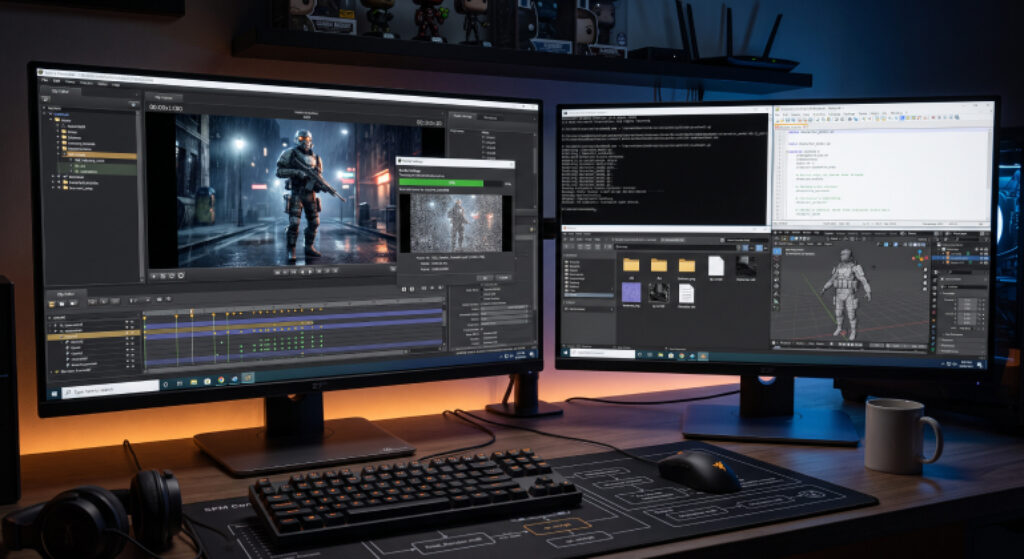
In the simplest terms, an SFM compile refers to two distinct technical processes. Specifically, it happens within the Source Filmmaker ecosystem.
It is the act of taking raw, editable data and converting it into a locked, finished format. Therefore, the software engine or a media player can read it easily.
1. Compiling Finished Animations Into Video Files
The first type of compile is the final rendering phase. First, you build a scene and adjust the lighting. Next, you set up your camera keyframes in the Clip Editor.
At this stage, the project exists only as a heavy working file. Therefore, compiling means rendering that raw timeline into a shareable movie format.
For example, you can export to MP4, AVI, or an image sequence. Consequently, you can upload it or pass it to a video editor.
2. Compiling 3D Assets Into The Source Engine
The second type of compile involves asset creation. For example, you might build a custom 3D character or a map. Usually, you do this in external tools like Blender or Maya.
However, the Source engine cannot read those raw formats directly. Therefore, you must run them through a compiler tool.
This software utilizes the .qc file script for the conversion of file formats such as OBJ or FBX to either .mdl or .bsp files. Consequently, this enables bundling of the geometry, bones, and textures into one package.
Is SFM Compile For Adult Content?
If you type “SFM compile” into a search engine, you will notice a trend. Specifically, you will see a high volume of adult-oriented community links. Because of this, many people mistakenly assume something is wrong.
They think that SFM compilation is a niche pipeline designed strictly for mature or indie NSFW content. However, this is completely incorrect.
Indeed, Source Filmmaker is a highly respected engine technology. For example, Valve used it to create iconic, mainstream cinematic trailers. You can see it in games like Team Fortress 2, Portal, and Dota 2.
Valve’s primary store copy officially validates this history, stating it is “the movie-making tool built and used by us here at Valve to make movies inside the Source game engine.
Furthermore, the software is a powerful, professional-grade sandbox. It is utilized daily by indie filmmakers, game developers, YouTube creators, and digital artists worldwide. [Source: The Source Filmmaker Product Page on Steam]
Therefore, the technical compilation process is a universal backend requirement. It applies to any animation project, regardless of the subject matter. Crucially, the tool itself is entirely neutral. It is simply a gateway to processing high-quality 3D assets and animations.
Also Check: Wheon Games Download: Download Games More Efficiently And Securely.
Who Should Use An SFM Compile And How It Helps
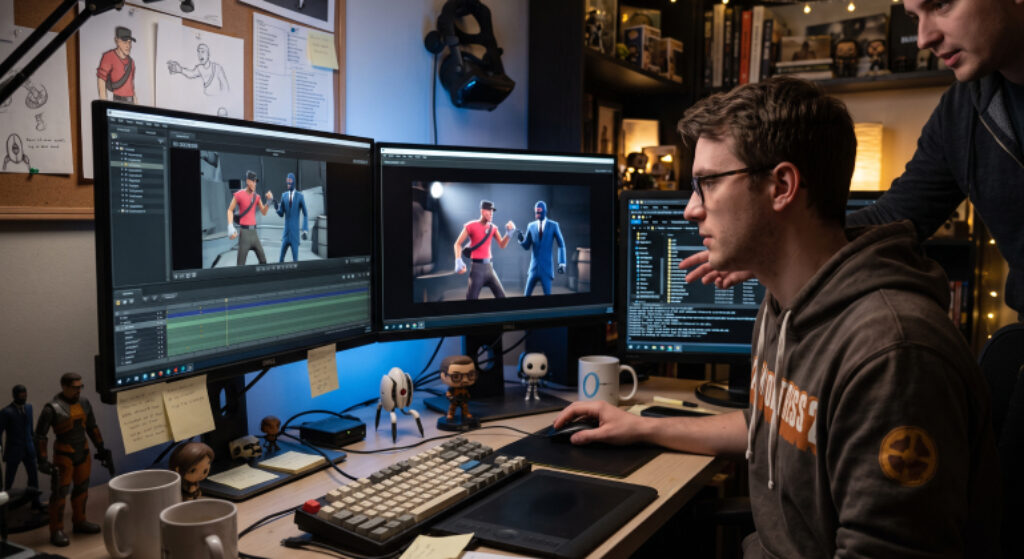
If you fit into any of the categories below, mastering this workflow will save you hours of frustration. Consequently, it will elevate your digital projects:
- Machinima Creators and Animators: First, you want to create cinematic stories using video game assets. Therefore, learning to render out your timelines correctly ensures your videos look polished. As a result, you avoid choppy frame rates.
- Game Modders and Asset Designers: Perhaps you love adding custom skins, unique items, or original characters into Source engine games. If so, compiling converts your raw art into usable game objects.
- 3D Art Enthusiasts: Finally, compiling assets allows you to combine custom models with dynamic lighting. Then, you can add camera effects to build gorgeous digital posters.
Understanding this process helps you avoid the dreaded “missing texture” glitch. For example, this stops the bright purple and black checkerboard error.
In addition, it stops sudden software crashes. Therefore, it gives you complete control over your final visual quality, lighting setups, and rendering settings.
Beyond StudioMDL: Smarter Compiling Tools
Valve provides a native compiler tool called studiomdl.exe inside the game files. However, relying solely on it can feel like working in the dark.
For instance, if your code has a tiny syntax error, the command window flashes and closes instantly. As a result, you are left with no idea what went wrong.
Through trial and error, I found a much better way. Specifically, using a community-made graphical user interface (GUI) makes the compile process significantly smoother.
Crowbar Compiler
Experts highly recommend downloading Crowbar via GitHub or specialized community modding hubs.
Crowbar is an incredibly stable, free tool. Furthermore, it acts as a front-end wrapper for Valve’s compiler. Instead of dragging and dropping files manually onto an executable, Crowbar simplifies everything. [Source: Valve Developer Community]
For example, it lets you select your .qc file, choose your target game directory, and compile with a single click. Crucially, it provides a comprehensive text log.
This log highlights exactly why a compile failed. Consequently, it saves you from endless guessing games.
Multi-Device Optimization: Desktop, Laptop, And Mobile
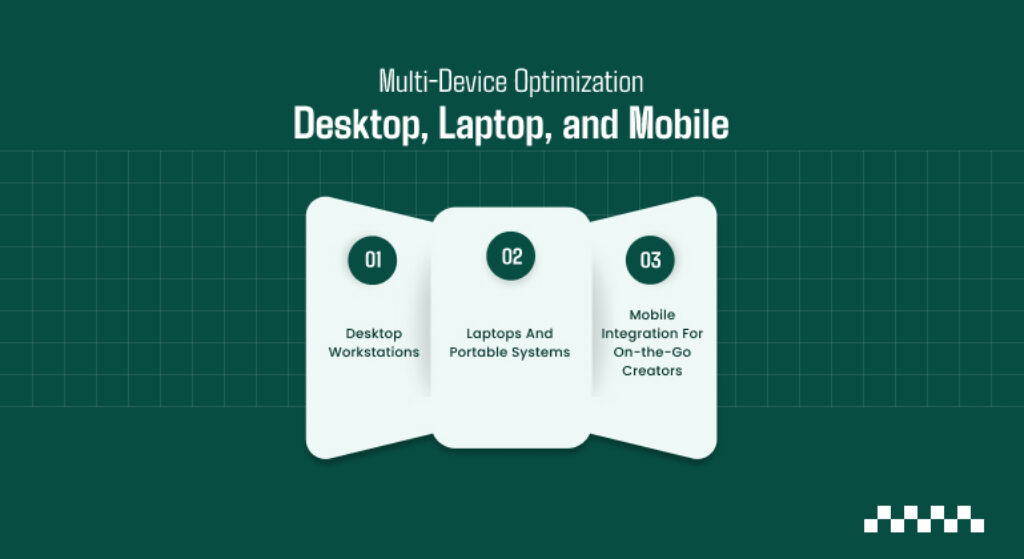
A common oversight when looking up SFM compile guides is assuming one thing. People think everyone is working on a high-powered, multi-monitor workstation.
However, the reality of modern content creation is different. Workflows are often spread across different hardware types. Therefore, here is how you can manage the process depending on your machine.
Desktop Workstations
First, desktops provide the ideal environment for compiling. This is because the process heavily taxes your hardware.
Fortunately, a dedicated desktop GPU and desktop CPU allow you to compile complex models instantly. In addition, you can render out long animations at 1080p or 4K.
You can use deep ambient occlusion and motion blur without overheating. Furthermore, you can keep the SDK model viewer open alongside the main program to check your assets in real-time.
Laptops And Portable Systems
Can you run an SFM compile on a laptop? Absolutely. However, thermal throttling is your main enemy here.
Therefore, when rendering a video or compiling large assets, make sure your laptop is plugged into a power source. In addition, place it on a hard, flat surface to maximize airflow.
Finally, I recommend lowering your preview render settings while working. Then, bump them up right before the final export to save your system from overheating.
Mobile Integration For On-the-Go Creators
Source Filmmaker cannot run natively on iOS or Android mobile devices due to engine limitations. However, mobile still plays a crucial role in a modern workflow.
First, you can use mobile cloud apps like Google Drive or Dropbox. These tools let you download custom 3D assets or references while away from your desk. Then, you can save them directly to your project folders.
Next, many animators use remote desktop apps on their phones. Consequently, they can check the status of a long, heavy render or asset compilation running back home.
Finally, you can plan your scene sequences, dialogue sheets, and .qc script structures using mobile note apps before sitting down to animate.
Troubleshooting Common Compile Errors

Even experienced animators run into walls during the compilation phase. However, when your model fails to compile or shows up broken, it is usually tied to one of three root issues:
1. The “Bones Limit Exceeded” Error
The classic Source engine has a hard limit on character bones. Specifically, the limit is typically 128 bones for standard models.
Therefore, if you are porting a highly detailed character from a modern game engine, the compile will fail. To fix this, you must open your model in an editor like Blender.
Then, simplify the skeleton armature. For example, remove non-essential bones like complex hair chains before re-exporting.
2. The Missing Material Error (The Purple/Black Grid)
Sometimes your model compiles and loads, but it looks like a neon purple and black checkerboard. Consequently, this means the engine cannot find your textures.
This happens when the path defined in your .vmt file doesn’t perfectly match your .qc script. Therefore, always double-check that your textures sit inside the correct directory. Then, verify that the internal text points directly to the correct .vtf file names.
3. “Too Many Vertices” Flex Glitch
Finally, you might compile a character with complex facial expressions. If so, you might hit a vertex limit that causes the compiler to crash.
However, I always solve this by breaking the model down into multiple body groups. For example, try separating the head from the body.
Then, compile them together within the .qc script using the $bodygroup command.
Step-by-Step: How To Perform A Basic SFM Compile
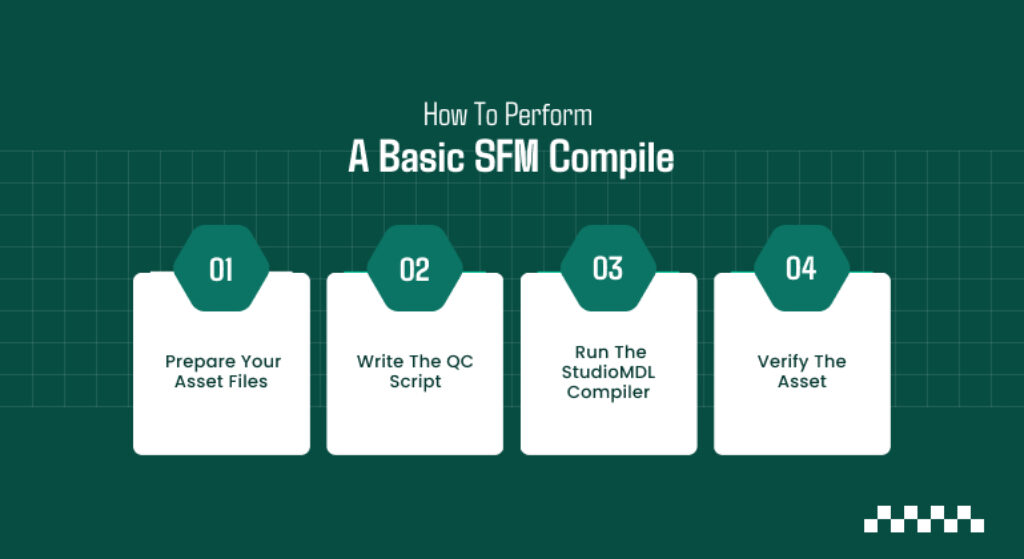
To make things practical, here is the basic workflow I use to successfully compile a custom model into the software:
Step 1: Prepare Your Asset Files
First, export your 3D model from your modeling software as an .smd or .dmx file. Next, ensure your texture files are converted into Valve’s .vtf format. Finally, accompany them with a .vmt file.
Step 2: Write The QC Script
Next, create a simple text document. Then, change its extension to .qc. This script tells the compiler exactly where to look.
In addition, it shows where to put the output. For example, a basic script looks like this:
$modelname “my_custom_project/character.mdl”
$body my_body “character.smd”
$cdmaterials “models/my_custom_project/”
$sequence idle “character.smd” fps 30
Step 3: Run The StudioMDL Compiler
After that, drag and drop your .qc file onto the studiomdl.exe application. You can find this inside your Source Filmmaker installation directory.
Alternatively, you can load it straight into the Crowbar GUI. Then, the application will read the paths, process the geometry, and generate your working .mdl file.
Step 4: Verify The Asset
Finally, open the Source Filmmaker SDK. Then, launch the Half-Life Model Viewer (HLMV). Go to File > Load Model and find your project.
If the character loads smoothly with its textures intact, your compile was a complete success. Therefore, you can now load it straight into your animation set editor!

![How To Use SFM Compile To Export Assets And Animations [Tutorial For Beginners]](https://www.technetdeals.com/wp-content/uploads/thumbs_dir/Hidingme-Com-ruqw4a9wtv3s6vbsaptpc9gkxjv997ule1e3kqlge4.jpg)