8 Best Time Blocking Apps And Tools (Free And Paid) For Desktop And Mobile

Quick Answer
For most people, Google Calendar is the best free time blocking app. It runs on the web, Android and iPhone, and it now handles tasks. Structured is a strong free visual planner if you use Apple devices. If you want software to place blocks for you, Reclaim has a free plan, while Sunsama, Morgen, Motion, and Akiflow are paid tools that cost roughly $15 to $19 a month on annual billing.
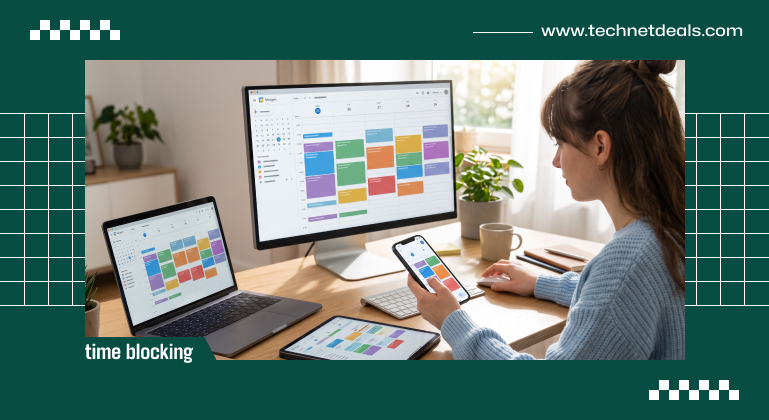
Time blocking isn’t complicated: you assign each task a start and end time on your calendar instead of piling everything on an endless to-do list.
The basic idea is easy enough. The real challenge is sticking with it. And honestly, which app you pick matters more than people realize – if it doesn’t run on your phone or costs more than it’s worth, you’ll stop using it within a week or two.
I dug into eight time-blocking apps, asking three questions: does it work on desktop, laptop, and phone; what can you actually do for free; and what will it cost once you need more features? I checked pricing pages, app store listings, and recent reviews.
Personally, I block my week by setting aside mornings for deep work and afternoons for meetings or errands – if I don’t put them on the calendar, I forget.
What A Time Blocking App Needs To Do
Here’s what a good time blocking app needs:
- Calendar sync: Your blocks need to sit right next to your meetings, not off in some random app.
- Duration: You must be able to give every task a start and end time, not just slap on a due date.
- Handling overruns: Either you drag blocks around yourself, or the app reschedules for you.
- Works on all your devices: If your planner’s not available everywhere, it’ll quietly fail.
Best Free Time Blocking Apps
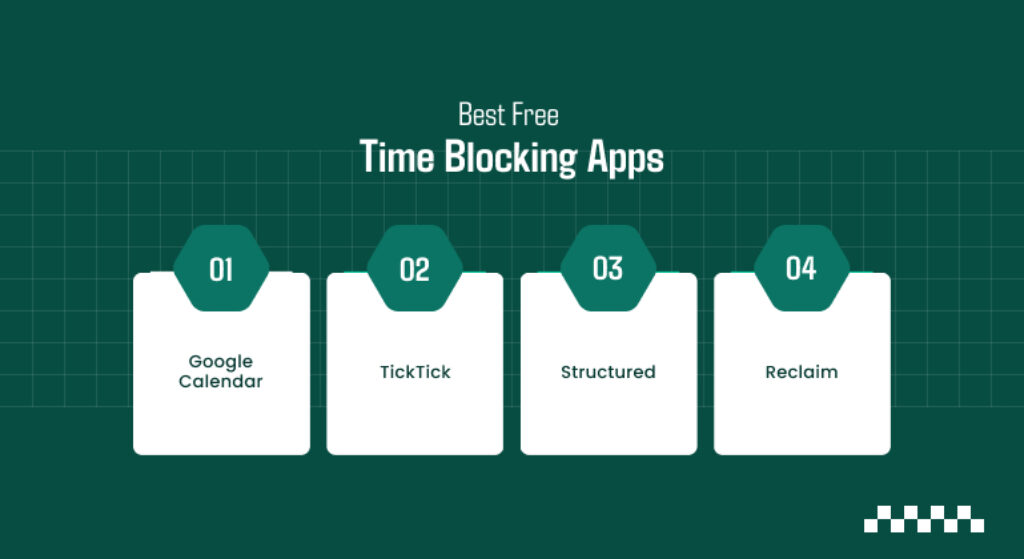
Here are some of the best free time blocking apps that you must know about:
Google Calendar
Google Calendar is super easy – just open it in your browser, or use the Android and iPhone apps. Also, Google Tasks is built in, so you can drag a task right into your day.
It’s the lowest risk way to try time blocking: nothing to install, nothing to cancel. The catch is you handle all blocks manually; it won’t plan anything for you.
TickTick
TickTick is more of a to-do app, but it has a calendar view and shows tasks next to Google, Outlook, or Apple Calendar events.
You can drag tasks onto the calendar, but the free plan limits you to 9 lists and 99 tasks per list.
Premium costs $35.99 a year, unlocking fuller calendar views and task durations. Reviews vary on what’s free, so check the app before committing.
Structured
Structured lays your day out as a vertical timeline – time blocking in its purest form. The free version covers the timeline, tasks, subtasks, a focus timer, and syncs across iPhone, iPad, Apple Watch, and Mac.
There’s also Android and web, but calendar integrations, the AI planner, and “Replan” (which rescues missed tasks) require Pro.
Pricing depends on your region. Heads up: a recent review said Replan, calendar import, and duplicating days are iOS-only, so Android folks should double-check features.
Reclaim
Reclaim plugs right into Google Calendar or Outlook and auto-creates blocks: focus time, recurring habits, and buffers around meetings. The free Lite plan has these but only plans a week ahead and allows one calendar sync.
Paid plans start at $10 per month (yearly billing). Reclaim writes blocks to your usual calendar, so you see everything on your phone. It’s now part of Dropbox.
Best Paid Time Blocking Apps
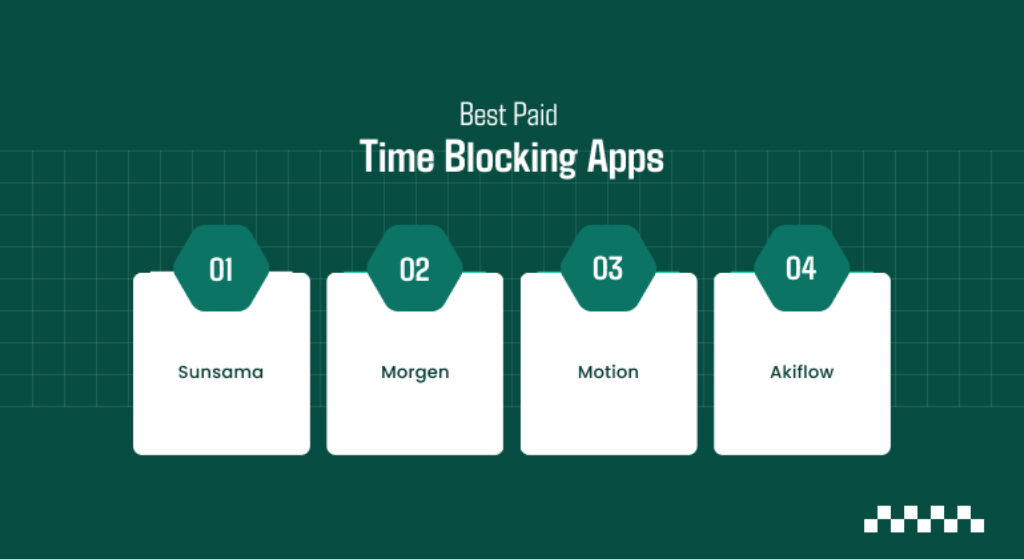
The best time blocking apps for which you will have to pay are as follows:
Sunsama
Sunsama is really built around daily planning: pull tasks from Todoist, Asana, Notion, or Trello, then drag them onto your calendar and set your workload.
There’s only a 14-day trial – no free plan. Pro is $17 per month (yearly), $22 monthly. Apps cover iOS, Android, macOS, Windows, and Linux.
Morgen
Morgen merges Google, Outlook, and iCloud calendars, plus several task tools, into one view. Its AI planner suggests blocks.
There’s a 14-day trial, then $15 per month (yearly), $30 monthly. No permanent free plan. Apps work on Windows, macOS, Linux, web, iOS, and Android.
Motion
Motion is the most hands-off: you enter tasks with deadlines and priorities and it auto-schedules and reschedules everything around your meetings.
Pro AI starts at $19 per month (annual discount and free trial available). Apps include iOS, Android, and desktop. It’s a combo of project management and AI – great if you want just one app for both calendar and tasks.
Akiflow
Akiflow pulls tasks from your other apps into one inbox and lets you drag them onto your calendar. No free plan, only a 7-day trial.
Pro costs about $19 per month (yearly), but older listings showed $12.50, so check the current rate. Apps run on Mac, Windows, iPhone, and Android.
Time Blocking Apps Compared: Price & Platforms
Take a quick look at the time blocking apps:
| Tool | Free Option | Paid Price (USD) | Desktop / Laptop | Mobile |
| Google Calendar | Free | Free | Web | Android, iOS |
| TickTick | Free plan | $35.99/year | Web, desktop apps | iOS, Android |
| Structured | Free plan | Pro, varies by region | Mac, web | iPhone, Android (fewer features) |
| Reclaim | Free Lite plan | From $10/seat/month (yearly) | Web, Google Calendar add-on | Through your calendar app |
| Sunsama | 14-day trial | $17/month (yearly) | Windows, Mac, Linux | iOS, Android |
| Morgen | 14-day trial | $15/month (yearly) | Windows, Mac, Linux, web | iOS, Android |
| Motion | Free trial | From $19/seat/month | Web, desktop apps | iOS, Android |
| Akiflow | 7-day trial | About $19/month (yearly) | Mac, Windows | iPhone, Android |
A Calendar Task Is Not Always A Time Block
This tripped me up when comparing free tools.
In Google Calendar, a task set for a certain time shows up, but – according to a recent walkthrough – it doesn’t have a set end time and doesn’t mark you as busy. So anyone booking a meeting can still block over it.
If you use “Focus time,” your slot gets really blocked and can decline conflicts, but not every account type offers that. If your blocks keep getting double-booked, start here – whatever app you pick, create a block, then view from another account to see if it shows as busy.
Check The App Is Still Alive Before You Build A Routine Around It

Clockwise, once a favorite for focus time, shut down in March 2026 after the team joined Salesforce, and user data got deleted soon after. Some lists still recommend it, but that’s just out-of-date info.
Before you go all in on any time blocking app, check three things: recent pricing/app updates, who owns the company now (Reclaim sits under Dropbox), and how you’d walk away.
Tools that write blocks into your own Google or Outlook calendar are much easier to ditch than those locking tasks in their own database.
What A Time Blocking App Can See In Your Calendar
Auto-scheduling apps need permission to read and edit your calendar, so they see meeting titles, attendees, links, etc. On a work calendar, you might need IT approval.
Vendors claim safeguards: Sunsama says it’s SOC 2 compliant, Motion displays SOC 2 Type II and GDPR badges, Morgen stores data in Switzerland or EU and doesn’t sell it.
Using Google Calendar manually, no third party sees anything. If you’re not sure, try connecting a personal calendar first.
Which App Fits Your Devices
- Windows laptop + Android phone: Google Calendar, TickTick, Sunsama, Morgen, and Motion work well. Structured does too, but Android features lag.
- Mac + iPhone: Structured is best for free, Sunsama, Morgen, and Akiflow also cover both.
- Outlook work calendar: Reclaim, Sunsama, Morgen, and Akiflow support Outlook.
My Verdict On The Best Time Blocking Apps
Google Calendar is your safest bet as the best free time-blocking app – it works everywhere with nothing to pay. If you want automatic blocks, Reclaim’s free Lite plan is your best option.
All of these apps work on mobile. They either have dedicated mobile apps or let you view your blocks directly through your phone’s built-in calendar app, though features can sometimes differ between platforms.
You do not need to pay for a time-blocking app at first, so it is best to try a free calendar for two weeks and only pay if you find yourself constantly fighting overruns or juggling too many separate task apps.
Additional Reading: